Sarathi Upload Failures: How to Fix Common Errors
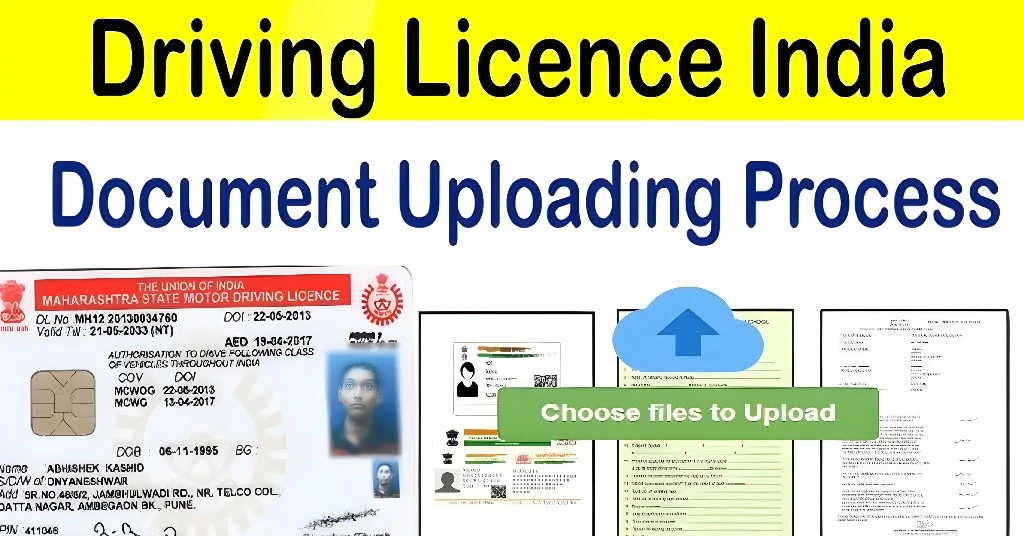
Using the Sarathi Parivahan Portal for your driving‑licence matters is super convenient — until you upload your documents and it fails. You upload photo or signature, hit submit, and nothing happens or you see an error message. Frustrating, right? The good news: most upload failures have simple fixes. Let’s walk you through the common errors and how you can resolve them quickly.
Why Your Upload Might Be Failing
Here are typical reasons your document upload in Sarathi (or related portals) isn’t working:
Step‑by‑Step: How to Fix Upload Failures
Here’s a step‑wise plan you can follow to fix the upload problem:
Make sure your document (photo, signature, ID proof) is in one of the allowed formats — e.g., JPG, PNG, PDF — as stated in Sarathi’s instructions.
Avoid names with special characters, emojis or long strings — use simple names like YourName_ID.jpg.
If you converted a file to PDF by just changing the extension (say .jpg to .pdf), it might still fail — re‐export using a proper PDF tool
Keep file size under the maximum limit mentioned on the portal (often under 1 MB or 2 MB, depending on the state).
Reduce image resolution if it’s too large; use a reasonable quality (300 dpi or less) so it loads quickly.
Make sure the image is clear, not blurry, and the edges are visible — poor quality increases rejection risk
Use browsers like Chrome, Firefox or Edge that are up‑to‑date.
Clear cache and cookies in your browser before retrying upload — old data can interfere.
Disable any ad‑blocker or script‑blocking extensions when uploading documents
Use a stable internet connection — WiFi is preferred over mobile data if it fluctuates.
If upload stops midway, cancel and retry. Sometimes slow internet causes time‑outs
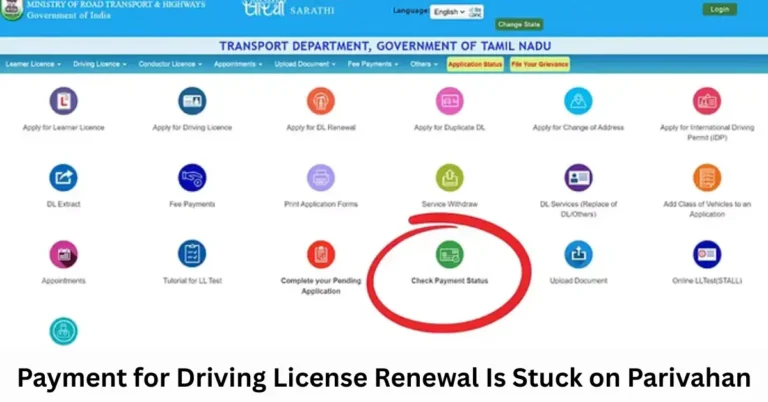
Go to the portal → “Upload Document” or equivalent menu.
Select correct document type (e.g., Address Proof, Identity Proof, Signature).
Upload the file, wait until upload bar hits 100% (don’t click other parts).
After upload, confirm the file appears in the portal preview. Submit and note down the acknowledgement number
If you’ve tried all above and still getting errors:
Take a screenshot of the error message.
Contact your State Transport Department or RTO help‑desk.
Provide application number, date, and the screenshot.
It may be a state‑portal server issue or backlog — follow up after a couple of days
Quick Tips to Avoid Upload Errors
FAQs
Final Words
Upload failures in Sarathi may seem annoying, but the fix is usually simple: check format, size, internet, and browser. Take it step by step and you’ll likely get past the error quickly. If nothing works, don’t hesitate to reach out to your RTO — better safe than stalled. Good luck with your application!